blue-light / ios / sleep
How to Disable Blue Light on iPhone With Color Filters
Key takeaways
- Start with Night Shift because it is the built-in iPhone layer for warmer colors after dark.
- Use Color Filters with Color Tint when you want a stronger red or amber iPhone screen at night.
- Add Color Filters to Accessibility Shortcut so a triple-click toggles the red screen quickly.
- Pair color with lower brightness or Reduce White Point, and do not treat display settings as medical care.
Night Shift is Apple's built-in iPhone setting for shifting display colors warmer after dark. Use it as the first layer, then add a stronger Color Tint only when you want the screen to become visibly amber or red. This guide is about reducing evening screen brightness and blue-rich light exposure; it is not medical advice or a promise that one setting fixes sleep.
How do you disable blue light on iPhone with Color Filters?
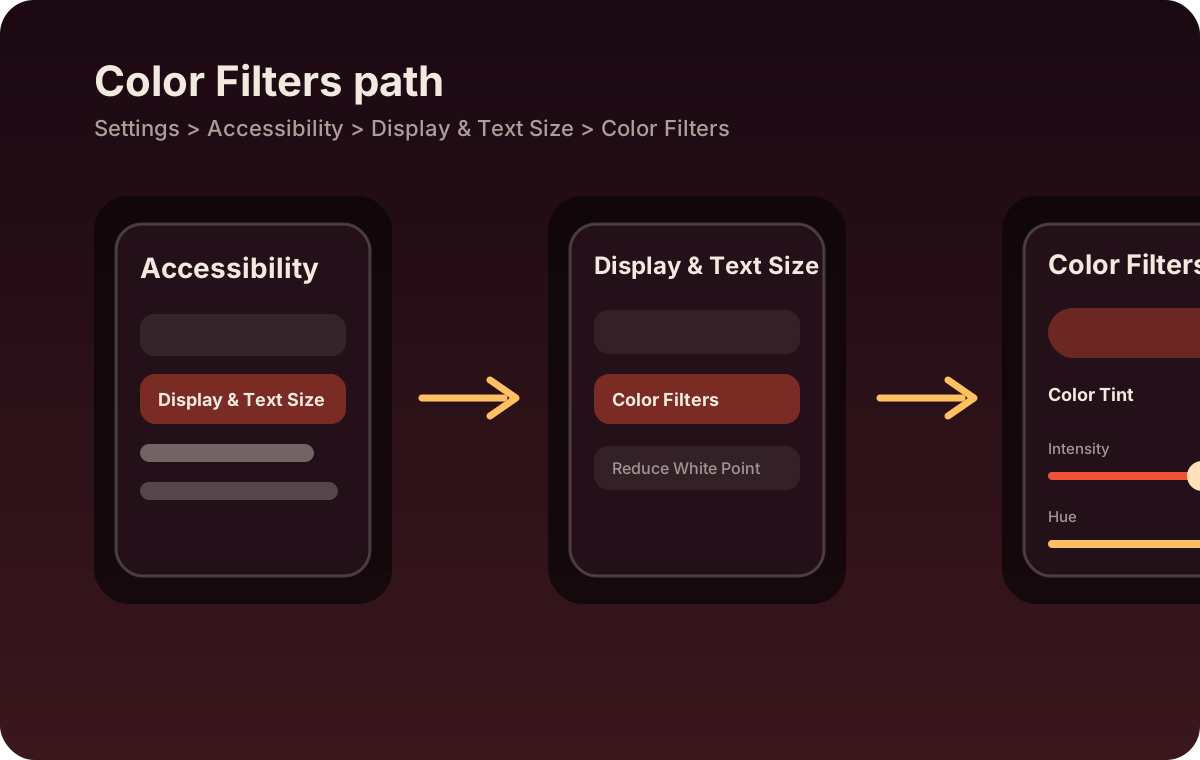
Apple documents Color Filters as a display accessibility setting that can tint the iPhone screen and expose hue or intensity sliders. For a red screen at night, use the Color Tint option and tune by eye rather than chasing a perfect number.
- Open Settings > Accessibility > Display & Text Size > Color Filters.
- Turn on Color Filters.
- Choose Color Tint.
- Move Intensity higher, then move Hue until the screen looks red or deep amber.
- Back off if text becomes hard to read, because Color Tint changes photos, video, and app color too.
How do you make the red screen fast to toggle?
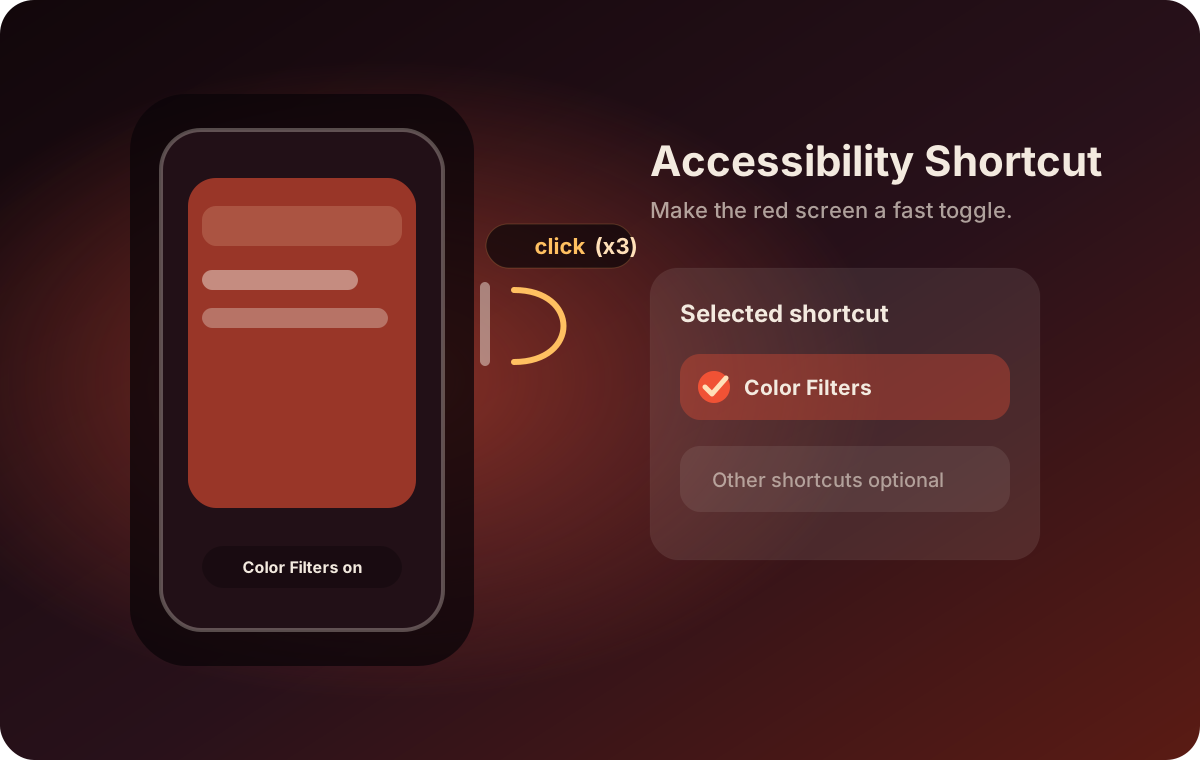
Apple documents Accessibility Shortcut as the place to select frequently used accessibility features and trigger them with a triple-click. Add Color Filters there so the red screen is not buried in Settings when you are already tired.
- Open Settings > Accessibility > Accessibility Shortcut.
- Select Color Filters.
- Triple-click the Side button on newer iPhones, the Home button on older iPhones, or the Top button on devices that use it.
- If multiple shortcuts are selected, pick Color Filters from the menu that appears.
What settings should you layer before Color Filters?
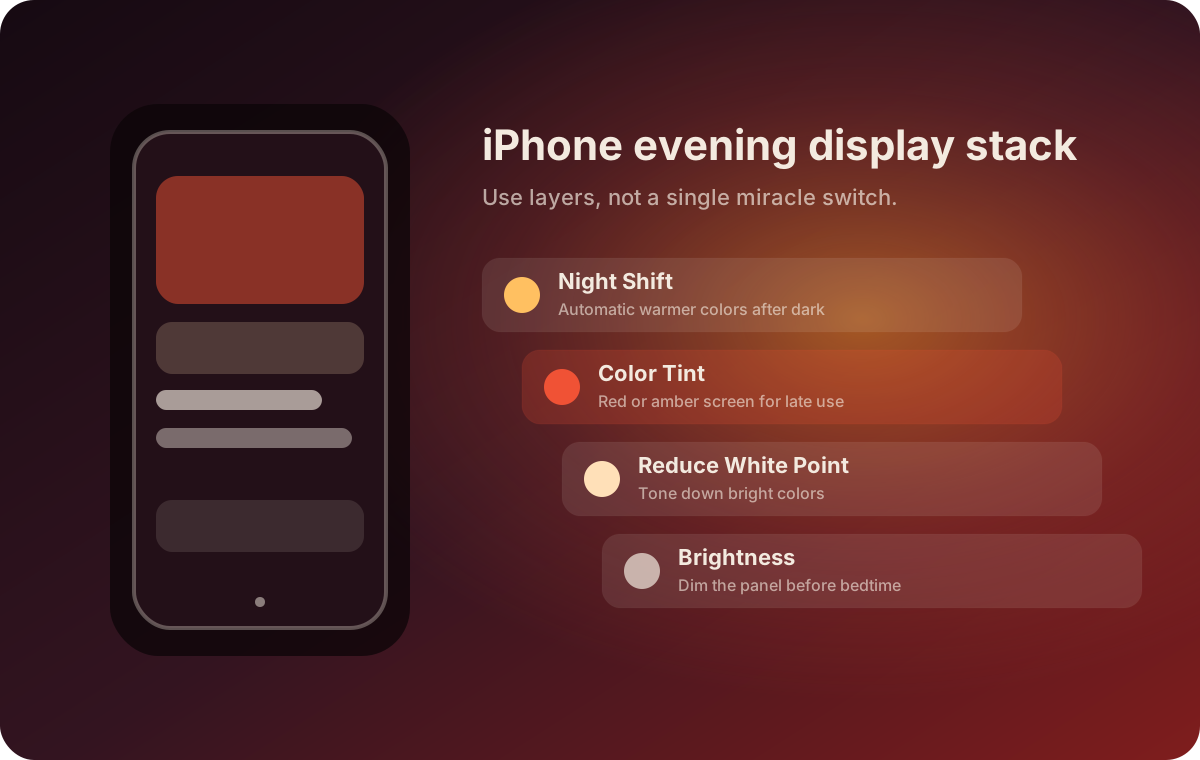
Think in layers. Night Shift is the automatic warm-color baseline. Color Tint is the stronger manual red-screen mode. Reduce White Point and ordinary brightness control lower intensity when the screen still feels harsh. Apple also notes that color filters can change how images and videos look, so keep this setup easy to disable.
- Night Shift: schedule it from sunset to sunrise or a fixed evening window.
- Brightness: lower it before bedtime instead of leaving the screen bright and red.
- Reduce White Point: use it when minimum brightness still feels too intense.
- Color Filters: save the red or amber tint for late reading, travel, or recovery nights.
What should this not promise?
A red iPhone screen is an environment tweak, not a treatment. CDC sleep guidance recommends turning off electronic devices before bedtime as one sleep habit, and research reviews describe light as one input to human circadian rhythms, sleep, and mood. That supports a modest claim: dimmer, warmer, less blue-rich evening screens can be one useful boundary. It does not prove a guaranteed health outcome.
Where should you go next?
For app comparisons, read the iPhone blue-light filter app guide. To build the rest of the routine, compare good circadian health apps and light exposure tracker apps.
Disable Blue Light on your Mac
If your evening screen problem continues on macOS, use Abendrot to warm your Mac display as part of the same nighttime routine. Keep the iPhone shortcut for the phone, then let Abendrot handle the bigger screen.